How to fix errors when previewing your complete campaign on Google Ads
Fixing what Google blocks in the campaign is the advertiser's responsibility and is not part of AdsX support's scope — the campaign runs in your account, with your product and your decisions (details in the "Support scope" lesson in AdsAcademy). Even so, since these errors keep repeating, we put together this guide: it shows how to identify and fix each one.
Don't have access to a Google Ads course? Talk to our support: we'll be glad to recommend a course suited to your level of knowledge.
When you click Preview in the last step of publishing a complete campaign, Google checks every item and points out what it blocked. Nothing was created in your account and nothing was spent — just fix it and upload again.
Identify the type of error
Check which counter is above zero and click its blue card to open the exact message:
- Errors → technical error.
- Policy violations → Google policy.
- No card, only a generic message → temporary issue on Google's side.
Technical error ("Errors")
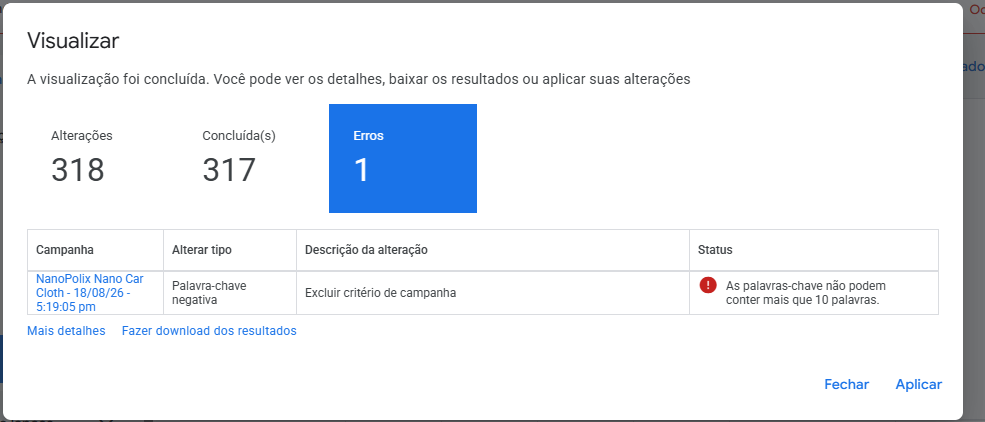
The Status column tells you what needs to change. Generate the campaign again in AdsX, fixing the item pointed out. In the example, a negative keyword went over the 10-word limit:
Policy violation ("Policy violations")
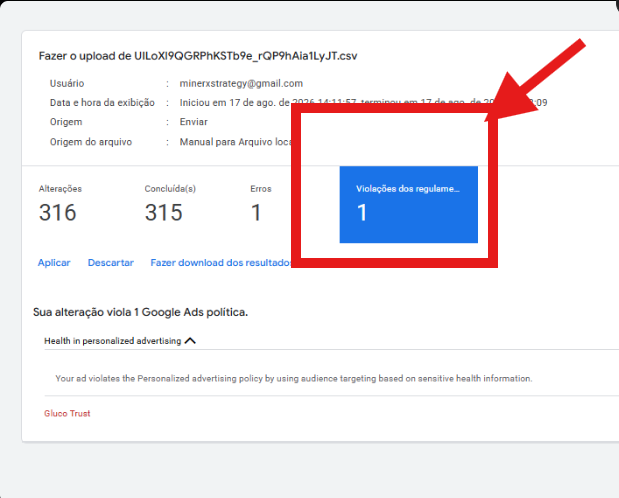
Google restricts some product categories — health is the most common. It is not a problem with your account or with the campaign AdsX generated. In the example, 315 of the 316 changes passed; only the product's keyword was blocked:
Try, in this order:
- Another country — the rules change from country to country.
- Other keywords — sometimes only one term is blocked.
- Another product — if the notice keeps appearing, Google does not accept ads for that product.
The full list of restricted categories is in Google's advertising policies.
Generic message or upload that won't load
- "An error occurred. Please try again later." with no card: wait a few minutes and click Preview again.
- Error before the preview: it is almost always the URL field — delete the "https://" Google fills in before pasting your link. See How to publish complete campaigns on Google Ads.
After fixing it
Upload again. When the preview passes with no errors, click Apply — the campaign starts paused. Before enabling it, check the Keywords tab to confirm your main keyword is there: if it was the blocked item, the campaign will not run.
Updated on: 09/10/2026
Thank you!