How to Publish Complete Campaigns on Google Ads
There are two ways to publish a campaign created by AdsCreator to Google Ads. Both buttons sit side by side at the bottom of the creation screen:
1. Publish to Google Ads — the classic mode. AdsX creates the campaign in your account with one keyword and the ad extensions.
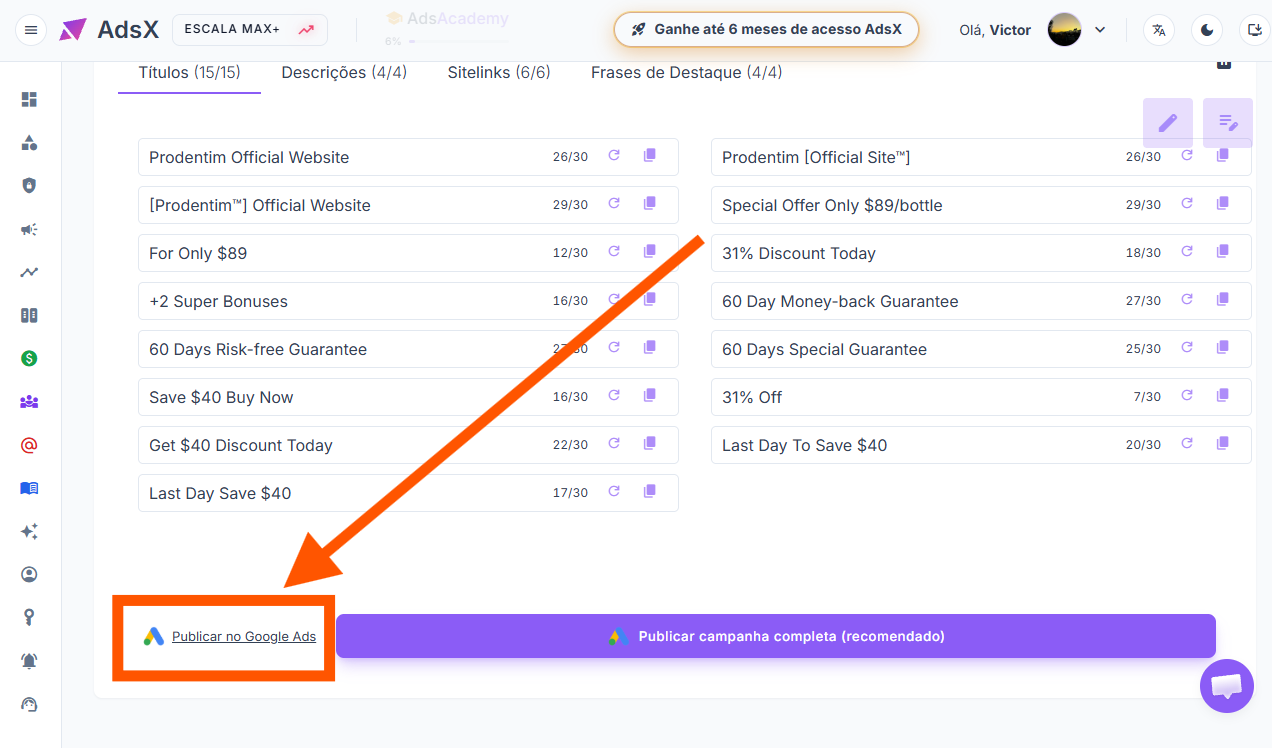
2. Publish complete campaign (recommended) — the evolution of the classic mode. The entire campaign comes out configured before it goes up: multiple keywords, your niche's negative keywords, language, and per-device bidding.
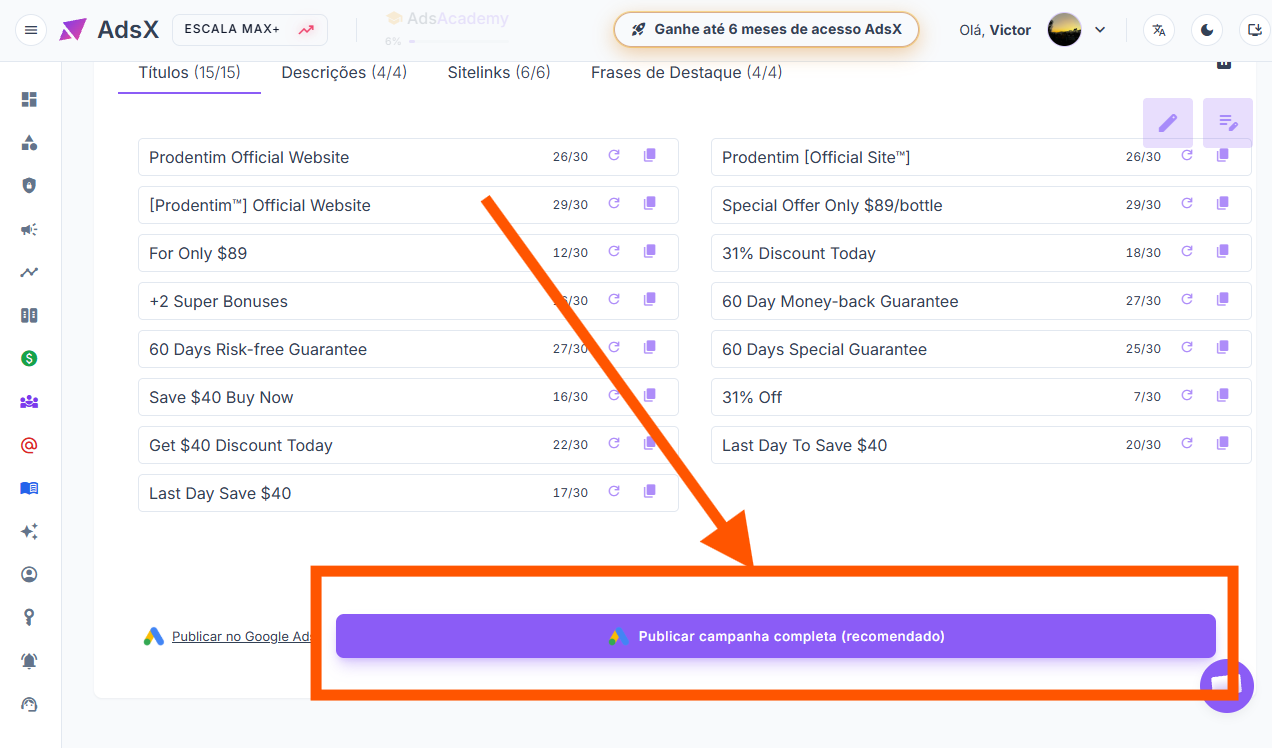
In this article you'll learn how the complete mode works. (The classic mode is covered in: How to Automatically Create Campaigns and Ads on Google Ads.)
Attention — before pasting the campaign URL, CLEAR the field. Google automatically adds an "https://" that causes an error if you don't remove it before pasting. Here's how:

Why use the complete mode
- It comes out cheaper. Google charges less from advertisers who are more relevant — and the campaign goes up with multiple keywords, each with the match type you choose.
- No wasted budget. Your niche's negative keywords are already applied, cutting searches from people who were never going to buy.
- Pay more where you sell more. You set the bid per device: more on mobile, less on desktop, or the other way around. And you can remove the device that only spends.
- Reach a new audience within the same country. You choose the campaign's language and speak to people who use Google in that language — like the Latino community living in the United States.
- You review before it exists. See the whole campaign before it's created in your account, with nothing left pending to adjust later.
- Organization and control. Every campaign is saved under My Campaigns.
Note: the video is narrated in Portuguese, but the steps are identical — the AdsX screens follow the same flow in any language.
Updated on: 31/08/2026
Thank you!