How Ad Quality Works in Google Ads
Ad strength is a score Google Ads itself gives your ad after the campaign goes live. It shows up on the ad editing screen inside your Google Ads account and ranges from Poor to Excellent. Google is the one calculating it — no tool, AdsX included, has any influence over it.
Seeing "Poor" right after publishing is scary, but it almost always comes down to one of these three reasons. Find out which one is yours.
The score does not stop your campaign from running. It tells you how much your ad could still improve — it is not an approval. Approval and policy warnings are a different matter, covered in How to Fix Your Google Ads Campaigns (Quick Guide).
Reason 1 — Too many keywords in the same campaign
This is by far the most common case. When you put several keywords into a single campaign, Google sees an ad trying to answer different search intents at once — and lowers the score for it.
That is why AdsX warns you right at the Keywords step when you publish:

What to do: publish one campaign per keyword. If you want to advertise on five terms, generate five campaigns in AdsX — it takes the same amount of time, and each ad stays aligned with the search it answers.
Reason 2 — Google hasn't reviewed the campaign yet
The score isn't ready the moment your campaign goes up. Google needs time to analyze headlines, descriptions and keywords — there's no official deadline, but in practice it rarely takes more than 15 minutes.
What to do: wait a few minutes and reload the ad screen. It is very common for the score to move from Poor to Good or Excellent on its own, without you changing a thing.
Reason 3 — Google found something to adjust
When something is missing from your ad, Google doesn't leave you guessing: next to the score it lists exactly what to do, with a See ideas link on each item.
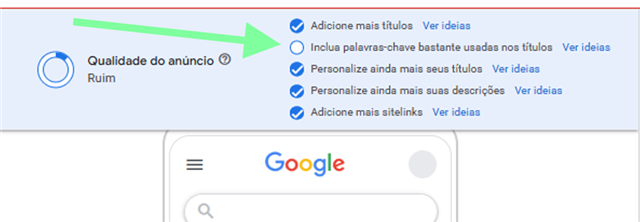
Items with a filled blue circle are already solved; the empty one, marked by the arrow, is what's still missing — in this example, using the keyword in the headlines.
What to do: click See ideas on the item that is still empty, apply the change and save the ad. The score is recalculated right after. Every item you solve pushes the score up.
Tips
- Solve the unchecked items first: those are the ones holding the score down.
- If the problem shows up earlier, while uploading the campaign, that's a different path: see How to fix errors when previewing your complete campaign on Google Ads.
- Adjustments and optimizations inside the campaign are part of an advertiser's job and are not covered by AdsX support. If you don't have a Google Ads course yet, talk to our support team: we'll recommend one that fits your level.
Updated on: 03/09/2026
Thank you!