How to set up automatic conversion reporting to Google
Set it up once: Google Ads fetches your sales every day and records the conversions by itself. 15 steps, about 5 minutes. The screenshots show the Google Ads interface in Portuguese — the screens are the same in every language.
Don't see the "Turn on automatic sending" button on your screen? All good: your account was born with automatic sending on. Follow the steps as usual and skip step 14.
1 — Copy your link in AdsX
In the menu, under Connections, open Google Conversions and click the copy icon next to the link.

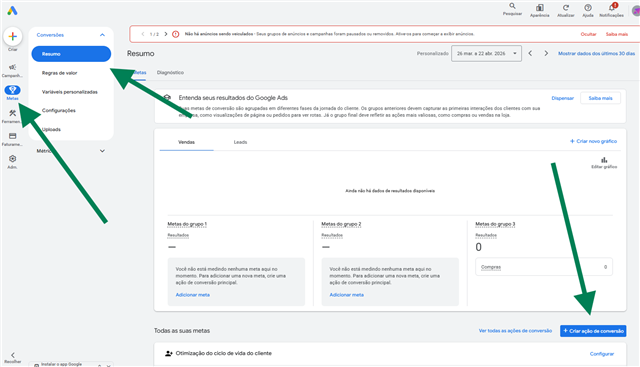
2 — In Google Ads, open Goals → Conversions → Summary and click + Create conversion action
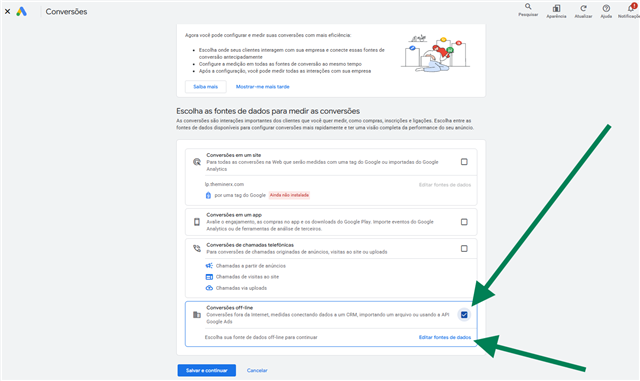
3 — Check Offline conversions and click Edit data sources
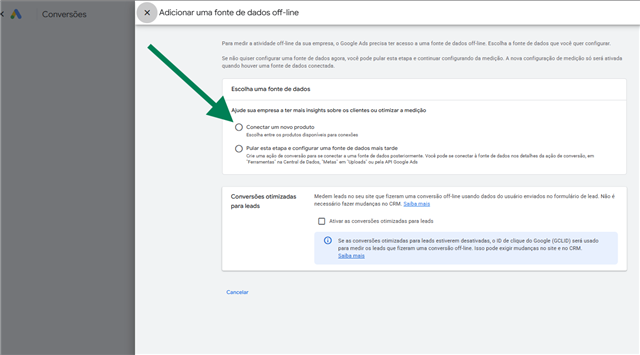
4 — Choose Connect a new product
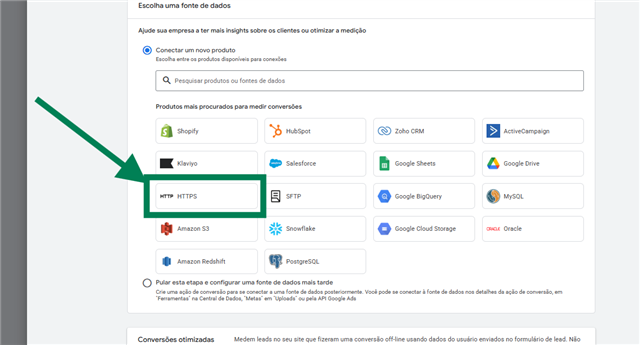
5 — Select HTTPS
6 — Check the box under Customer data and click Done
You don't need to check "Enable enhanced conversions for leads".
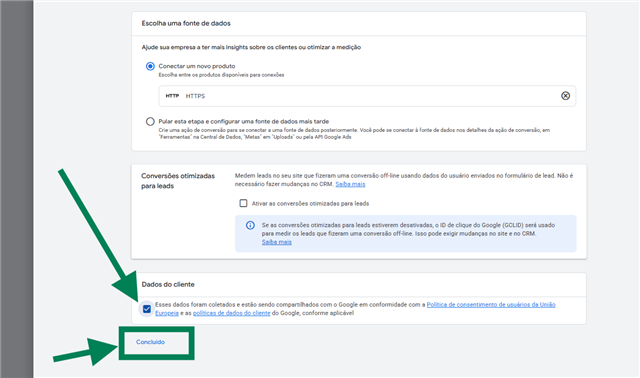
7 — Click Save and continue
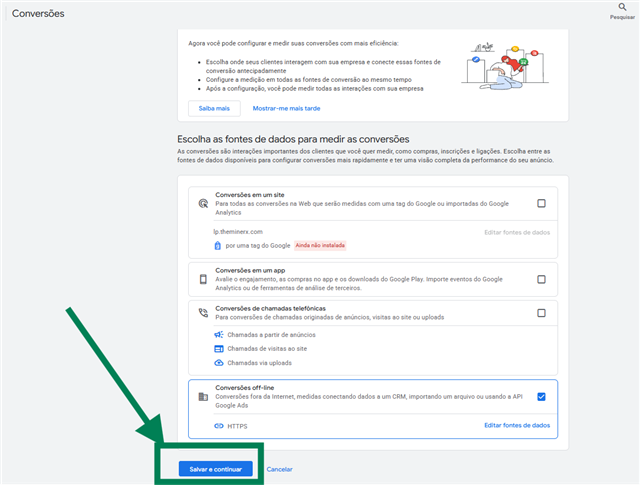
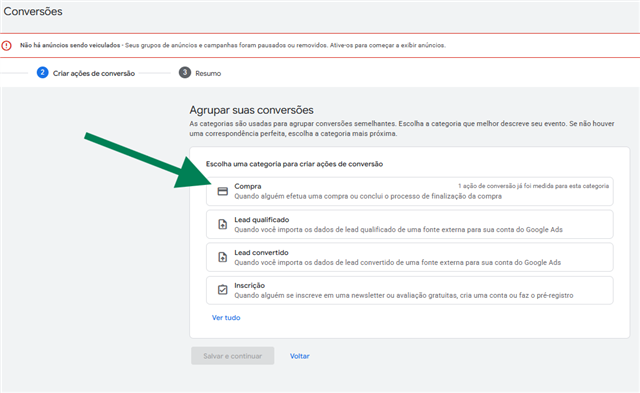
8 — Choose the Purchase category
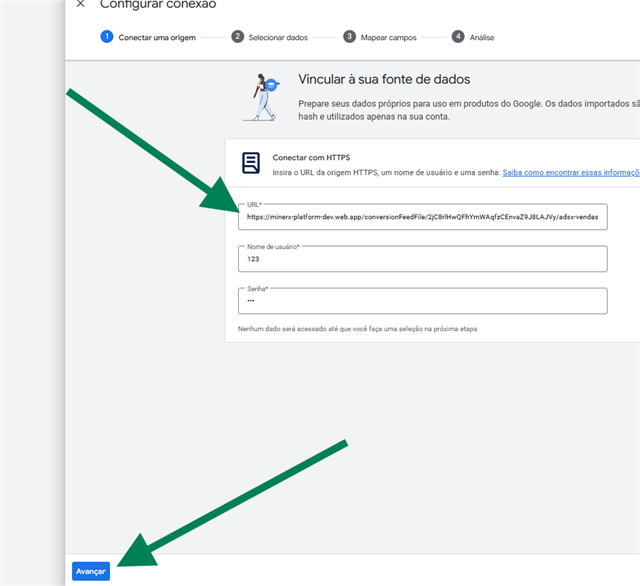
9 — In the URL field, paste the link you copied in AdsX in step 1
The URL field takes the link from the Google Conversions screen, the same one you copied in step 1. If you lost it, go back to AdsX and click the copy icon again.
In Username and Password, type adsx. Both fields are required, but the link needs no password — any value works. Click Next.
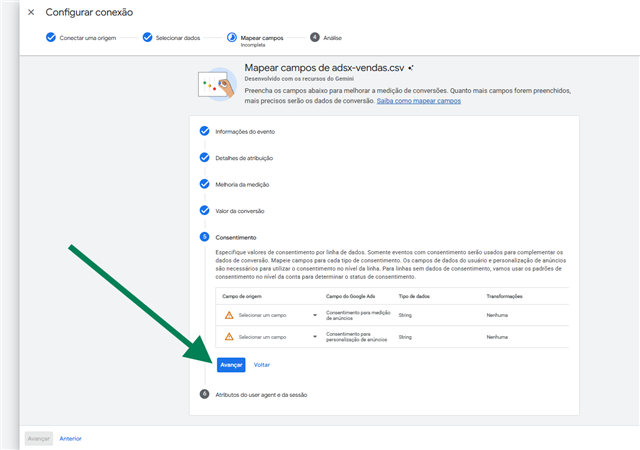
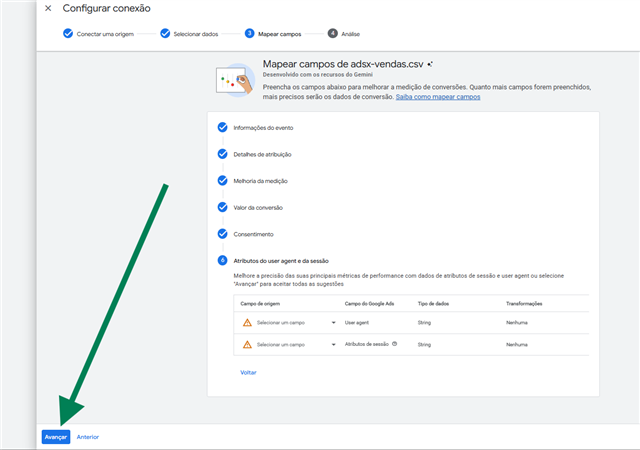
10 — Map fields: check the suggestions and click Next at each step
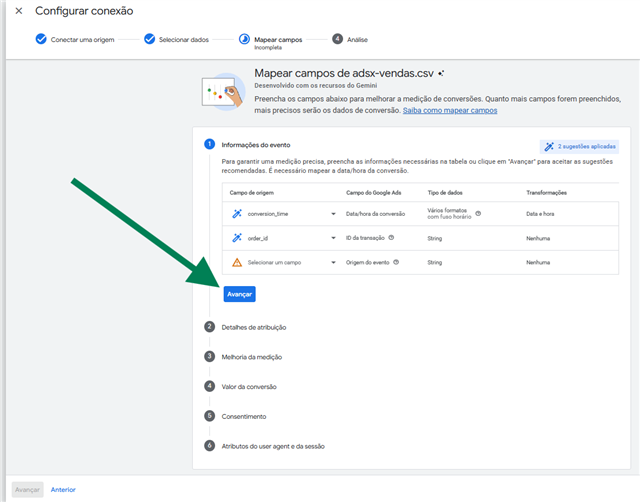
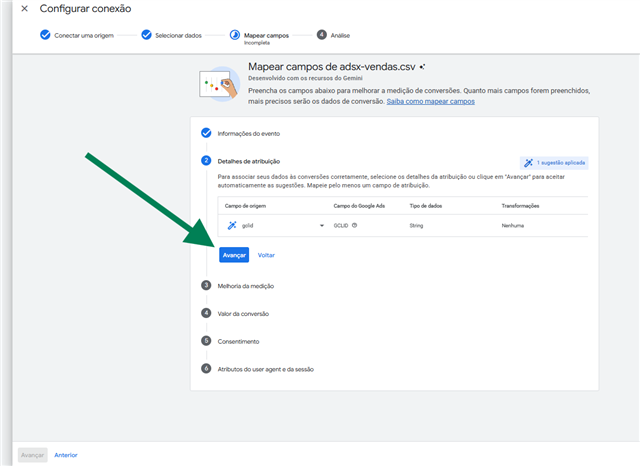
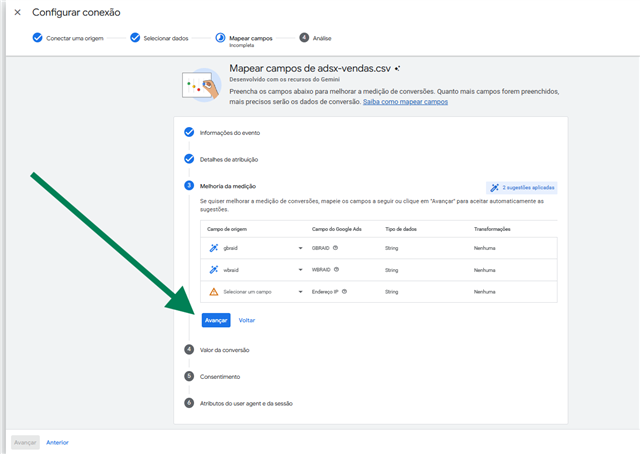
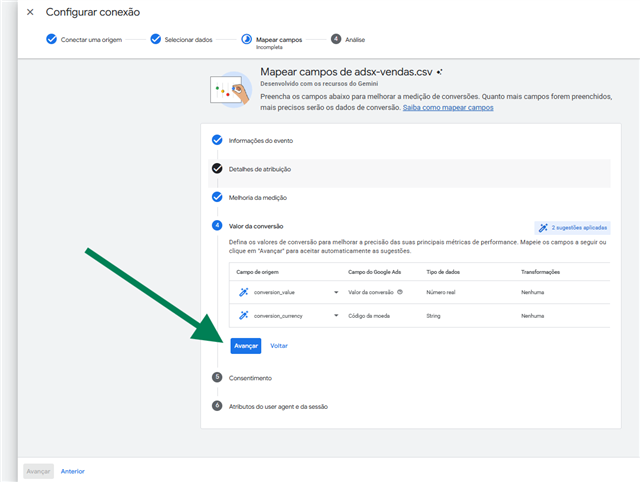
Google already fills in the right fields. Check that they look like this:
Event information: conversion_time → Conversion date and time, and order_id → Transaction ID.
Attribution details: gclid → GCLID.
Measurement improvement: gbraid → GBRAID and wbraid → WBRAID.
Conversion value: conversion_value → Conversion value and conversion_currency → Currency code.
Consent and User agent and session attributes: leave empty and click Next.
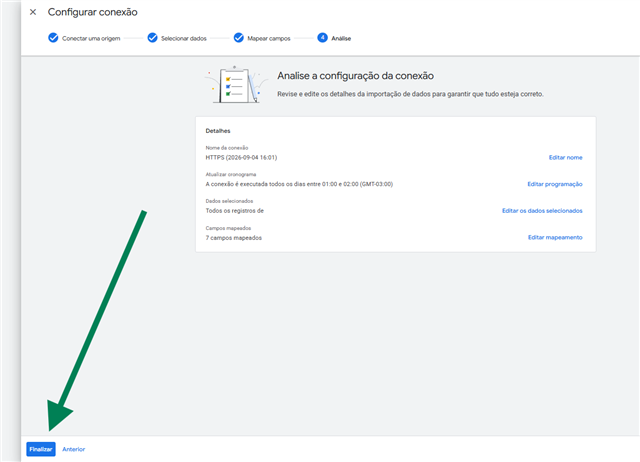
11 — Review the summary and click Finish
The import is already scheduled to run every day. If you like, use Edit name to call the connection AdsX.
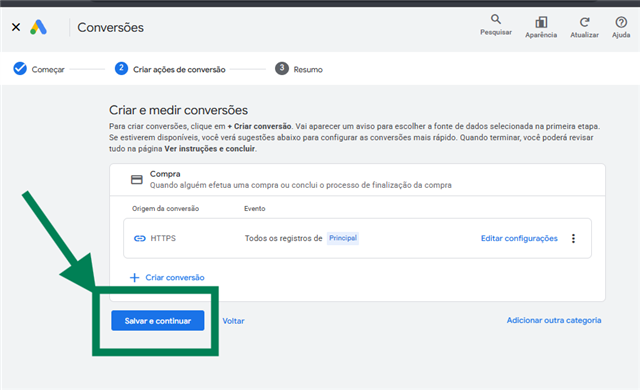
12 — Click Save and continue
13 — Click Finish
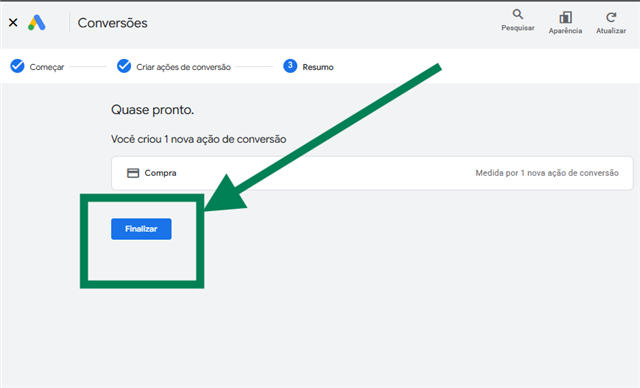
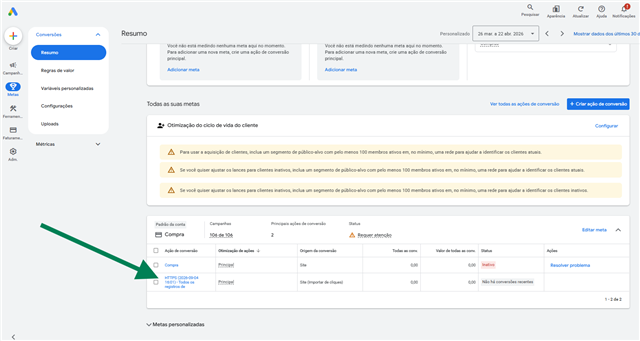
The conversion action shows up under Goals → Conversions as "Website (Import from clicks)", primary.
14 — Go back to AdsX and click Turn on automatic sending
Confirm the notice. If the button isn't there, your account is already on — go to step 15. From the next daily fetch on, your sales with a Google click go into Google Ads by themselves.
15 — Keep adsx-vendas.csv as the only primary action
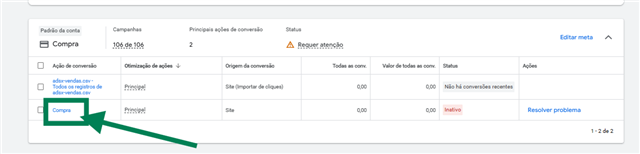
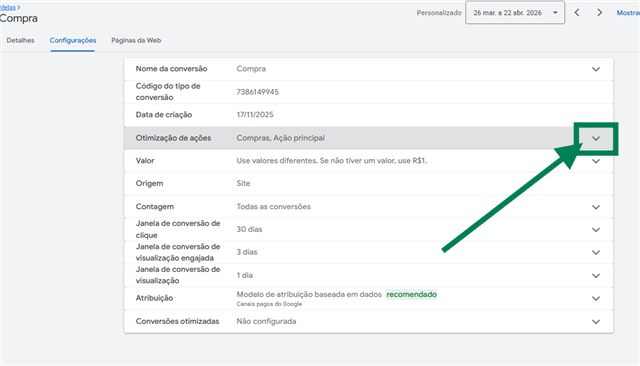
In Goals → Conversions → Summary, look at the Purchase goal. If it has more than one Primary action, the same sale counts twice for bidding. Click the name of the old action (in the example, Compra).
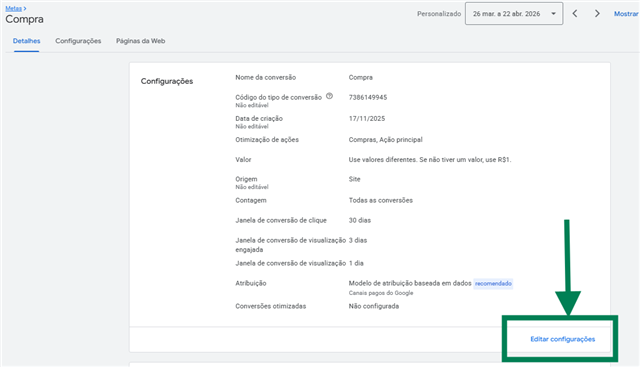
Click Edit settings.
Open Action optimization.
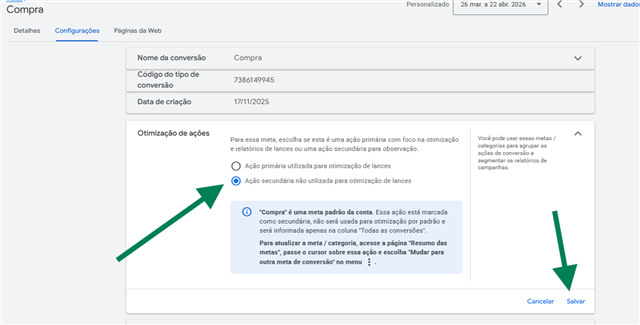
Select Secondary action not used for bidding optimization and click Save.
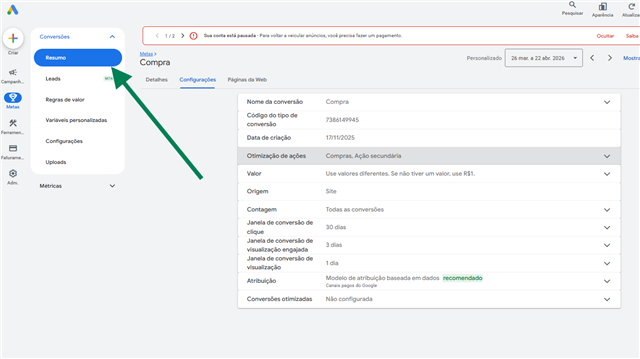
Go back to Conversions → Summary.
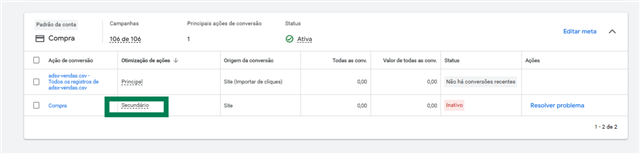
Check: only adsx-vendas.csv is Primary, and the goal status is Active. Repeat for every old action still set as Primary.
- The goal must carry the Account default label. If it doesn't, click Edit goal and turn on Use as account-default goal.
- On adsx-vendas.csv, check that counting is set to Every (two sales from the same click are two conversions).
Tips
- Conversions show up under Goals → Conversions on the click date, up to 12 hours after the fetch (up to 72 hours for iPhone clicks).
- Google only accepts a sale 6 hours after the click. If the fetch comes earlier, the sale goes in the next one. Nothing is lost: the file carries the last 30 days and Google skips what it already recorded.
- While automatic sending is on, the manual sending buttons in My Sales are hidden.
FAQ
Do I need to connect my Google account in AdsX to use automatic sending?
No. The link works in any Google Ads account, connected to AdsX or not. Connecting accounts is for creating campaigns and viewing metrics — conversion sending doesn't depend on it.
Should I use the same link in all my accounts?
Yes. Each account only recognizes its own clicks. That's why, in the connection history, sales from your other accounts show up as rows with errors — that's normal and harmless.
I have an MCC. Do I paste the link only in the MCC or in the accounts too?
If the account is managed by the MCC, the MCC is enough. If not, paste it in each account.
I have no sales yet. Can I connect?
Yes. While there is no sale with a Google click, the file carries one example row, which Google ignores and which disappears on your first sale.
I advertise in Europe or the UK.
Google requires the visitor's consent to count those conversions. Set your account default under Data Manager → consent settings.
I just made a sale and it hasn't shown up.
That's normal: the sale goes in the next daily fetch and shows up on the click date.
Updated on: 20/10/2026
Thank you!