How to Link a Sub-Account to an MCC in Google Ads
Warning: accounts linked to an MCC stop syncing with AdsX. AdsX does not navigate an MCC's hierarchy — it only recognizes accounts that show up directly in your own Google login. If you use AdsX, check this first: "How to Create a Sub-Account in Google Ads", in the helpdesk.
If you still need to link a sub-account to an MCC (for example, for centralized management or billing), here's the step by step:
- Go to the MCC and click Accounts, in the side menu.
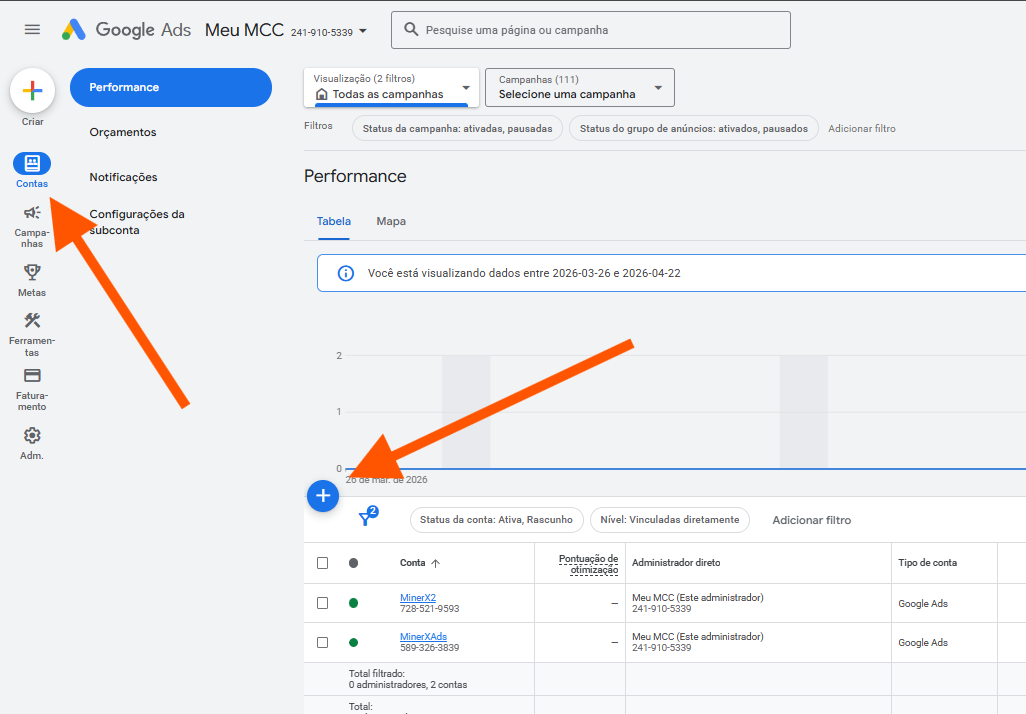
- Click the "+" button and choose "Link existing account" (or "Create new account", if the account doesn't exist yet).
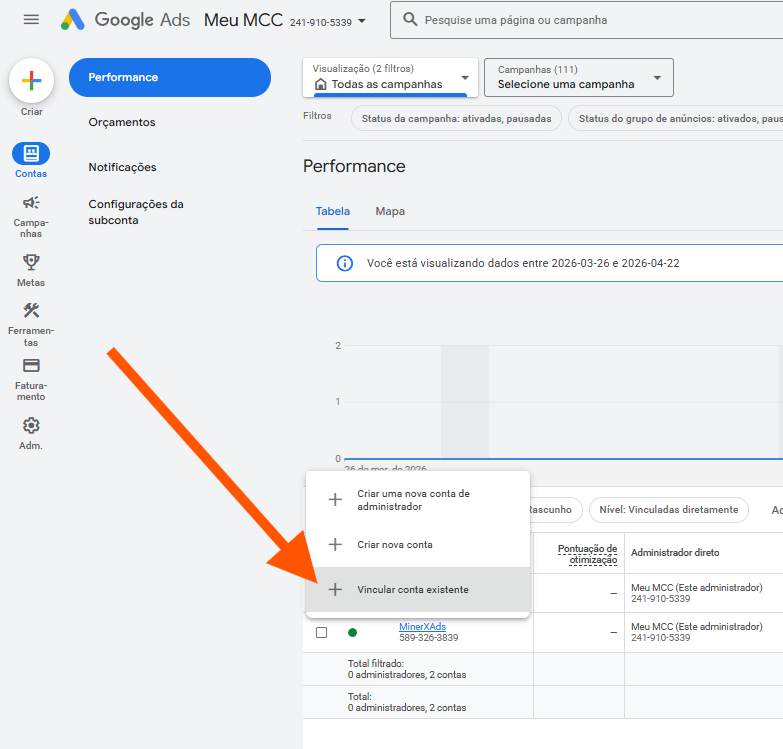
- Follow Google's instructions to confirm the link.
From that point on, the account is managed by the MCC. This is useful for consolidating several accounts under a single management — but if you use AdsX, that account will no longer show up in your login's account switcher, and AdsX won't be able to sync it.
Already linked an account and it disappeared from AdsX? It's not possible to reverse the link and recover the sync for that same account. The solution is to create a new account the recommended way: "How to Create a Sub-Account in Google Ads", in the helpdesk.
Note: the screenshots show the interface in Portuguese. The Google Ads screens follow the same flow in any language.
Updated on: 23/08/2026
Thank you!