How to fix the Passkey prompt when signing in with your Google account
If this is the screen you saw after clicking Sign in with Google, this article is for you:
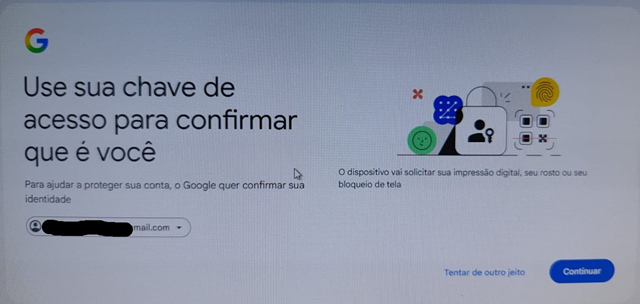
The steps below show how to sign in without the Passkey right now and how to make Google ask for your password again.
Don't want to deal with the Google sign-in? You can add your Google Ads account to AdsX without it, using only the account email and ID. Only the dashboard metrics are left out. See how to add it without signing in.
Start with an incognito window
- Open an incognito/private window in your browser (Ctrl + Shift + N on Chrome and Edge, Ctrl + Shift + P on Firefox).
- In that window, go to AdsX and click Sign in with Google.
Most of the time, that's all it takes for Google to accept your regular password. If it still asks for the Passkey, go to the next step.
If Google still asks for the Passkey
- On the Passkey screen, click Try another way. If a Windows window pops up asking for your PIN or fingerprint, click Cancel and that option will appear.
- Choose Enter your password (or get a code on your phone) and continue normally.
Seeing "Try again in 6 days"?
This screen shows up right after you create a new Passkey: Google only lets you use the new key after that period. Your account is not locked — sign in from an incognito window using your password, as in the steps above.
Don't create another Passkey or delete the one you created: that restarts the wait.
Permanent fix: make Google ask for your password again
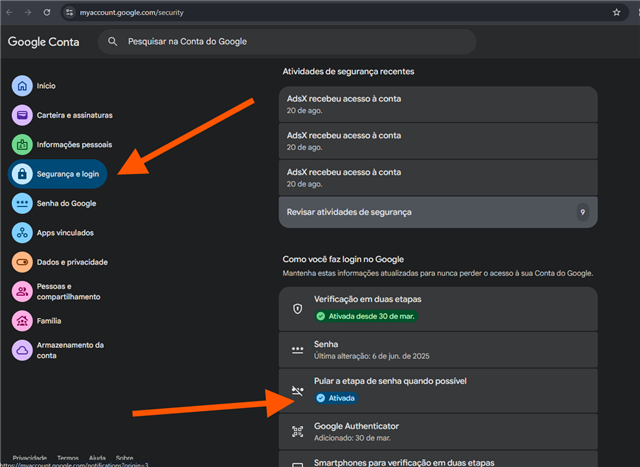
- Go to myaccount.google.com/security with your Google account.
- Under How you sign in to Google, click Skip password when possible.
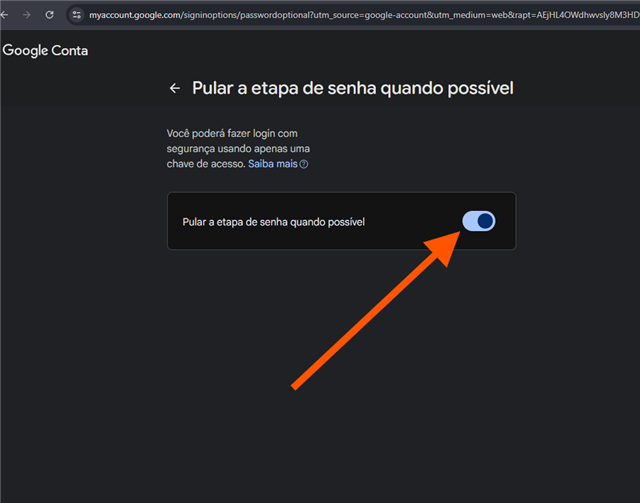
- Turn off the option by clicking the toggle.
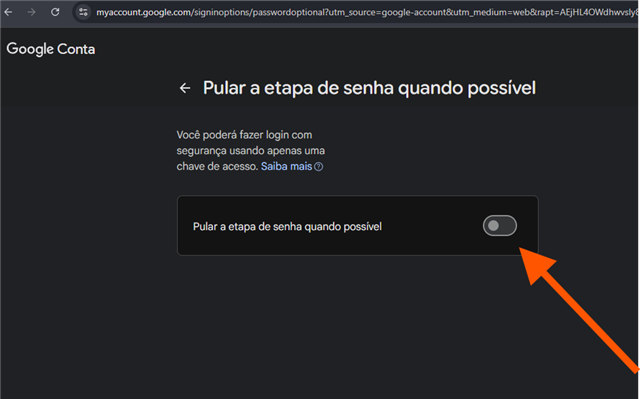
- Done — from now on Google asks for your regular password, no Passkey.
Tips
- Passkeys are often created without you noticing, from a quick "Continue" click during some sign-in. That's why it shows up "out of nowhere" — it's normal and not a sign of any problem with your account.
- If your Passkey was created on your phone, you can still use it: Google shows a QR code you can scan with your phone's camera.
- Make sure to change the setting on the same Google account you use with AdsX — if you have more than one account, check the email shown on the sign-in screen.
- None of this changes anything in your AdsX account — once you're in, everything stays exactly as it was.
If you still can't sign in
In some cases Google insists on the Passkey and your computer can't answer it (for example, when the key was created on another device). If you followed the steps above and sign-in is still blocked, the recommended path is to use another Google account. Here's how:
- Use another Gmail you can access normally, or create a new one at gmail.com — it takes 2 minutes.
- Open an incognito/private window in your browser (Ctrl + Shift + N on Chrome and Edge, Ctrl + Shift + P on Firefox).
- In that incognito window, go to AdsX and sign in with the new account.
- Connect the new account to AdsX and keep using the tools normally.
The incognito window step is usually what unblocks the sign-in: in a regular window the browser still loads the old account's session and Google asks for the Passkey again, even with the new account.
The barrier, in that case, is at Google's sign-in, before AdsX even comes into play — and switching accounts is faster than unblocking the old one. Any questions about the switch, reach out to us on chat.
Rather not switch accounts?
You can also link your Google Ads account to AdsX without going through the Google sign-in, by entering just the account's email and ID. Campaign creation, conversion reporting and the other features stay the same; only this account's metrics don't show on the dashboard. Step by step: How to set up a Google Ads account without signing in with Google.
Updated on: 23/09/2026
Thank you!