How to Create a Sub-Account in Google Ads
Before creating a sub-account, one important point: AdsX does not navigate an MCC's hierarchy. It only recognizes accounts linked directly to your Google login — the ones that show up in your own account switcher. Follow the recommended way below to make sure the new account works with AdsX.
The recommended way
- In Google Ads, using the account you connected to AdsX, click your avatar (round icon, top right corner).
- In the menu that opens, click "Create a new Google Ads account".
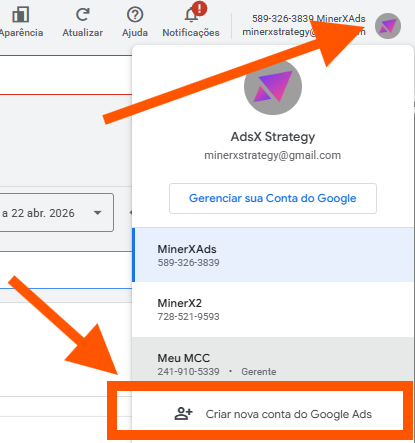
- Follow Google's wizard to set up the new account.
Done — this account is born linked directly to your Gmail, exactly what AdsX needs to recognize it.
Need to organize the account inside an MCC? That breaks the sync with AdsX. See why and the step by step in "How to Link a Sub-Account to an MCC in Google Ads", in the helpdesk.
After creating it: sync it in AdsX
- In AdsX, go to Google Accounts in the side menu.
- Click the refresh icon (↻) next to your connected account.
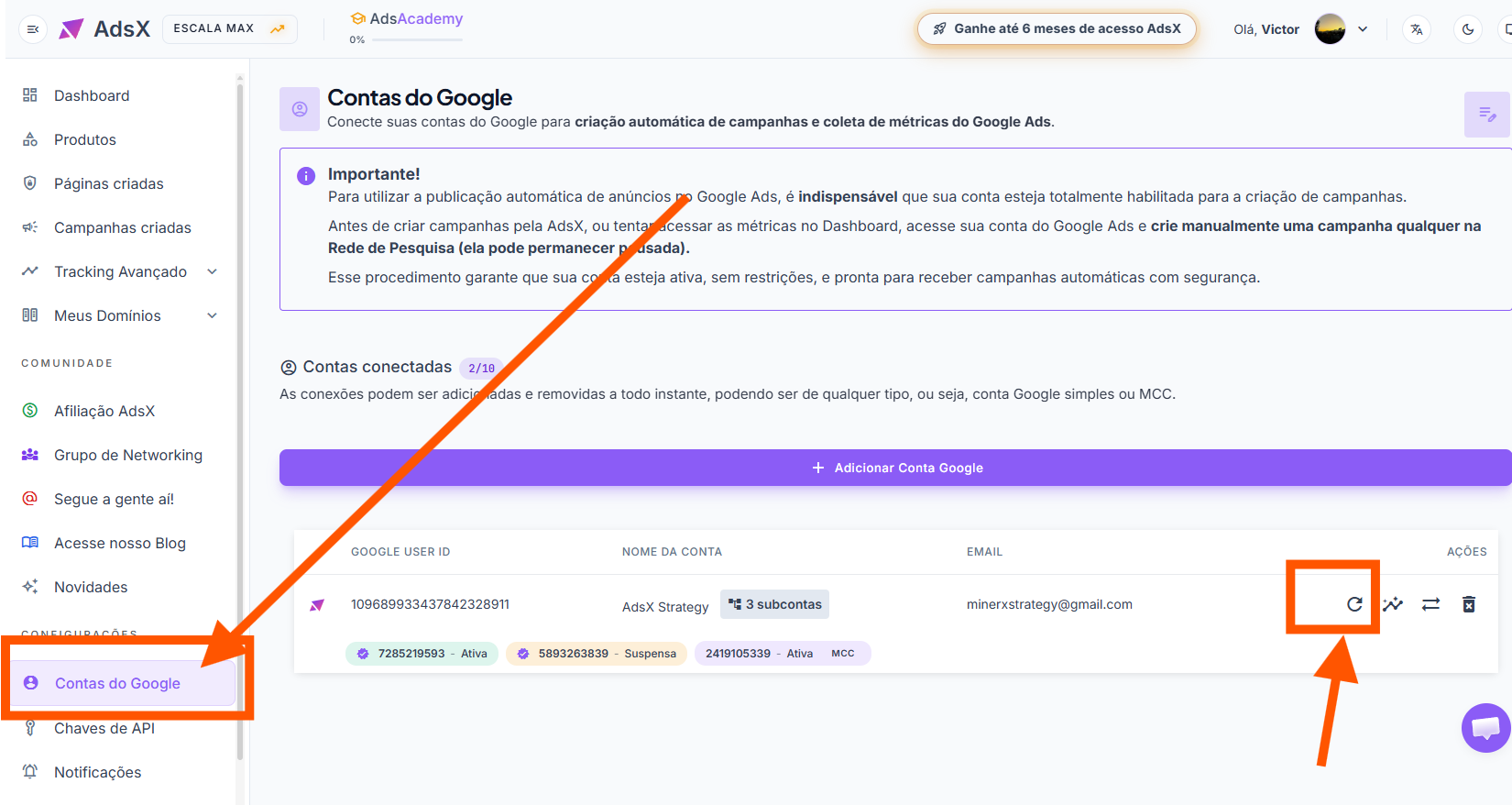
- Wait a few seconds — the new sub-account appears in the list automatically.
If it doesn't work, remove the connection and connect again:
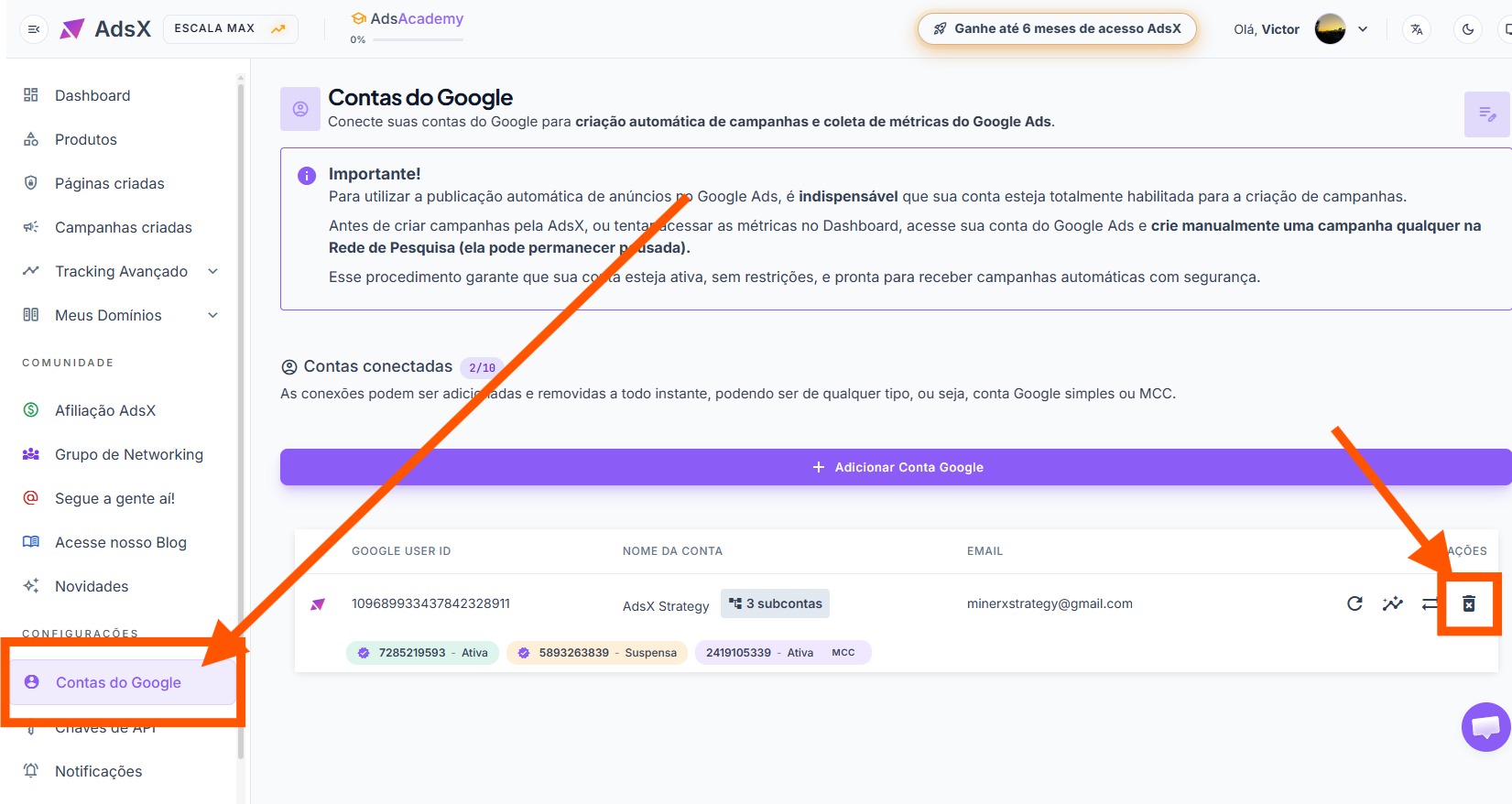
See the full connection and sync walkthrough: How to Add or Update Google Ads Accounts and Sub-Accounts
Note: the screenshots show the interface in Portuguese, and the article linked above is currently in Portuguese as well — an English version is on the way. The Google Ads and AdsX screens follow the same flow in any language.
Updated on: 23/08/2026
Thank you!