How to set up a Google Ads account without signing in with Google
If signing in with Google doesn't work for you — the window doesn't open, it asks for a passkey you don't have, or your company network blocks it — add the account using its email and ID. It takes a minute, and you only do it once.
On the Google Accounts screen, this is the button to use:

With an account added this way, you use AdsX as usual: create campaigns, report conversions and everything else. The only difference is that this account's metrics don't show on the dashboard.
Step 1 — Find the email and the ID in Google Ads
- Sign in to ads.google.com with the account you advertise with.
- Click your profile picture in the top-right corner.
- The email is shown right below the name.
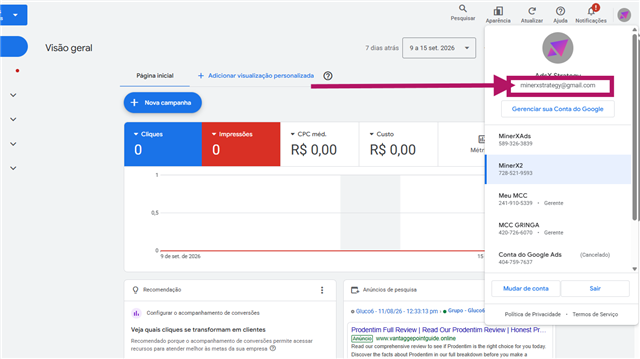
- In the account list, the ID is the number in the 123-456-7890 format, below each account name. Write down the ID of the account where your campaigns run.
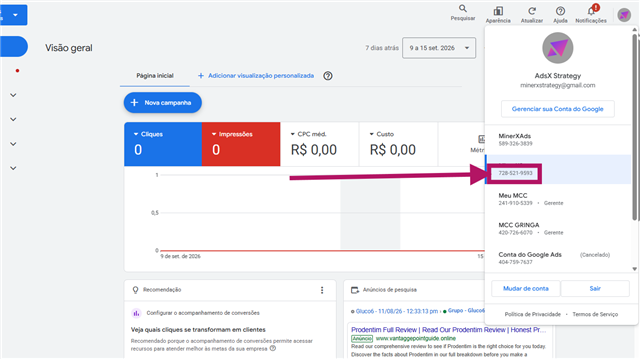
If you use a manager account (MCC), add the ID of the account where the campaigns run, not the manager's.
Step 2 — Add the account in AdsX
- In the AdsX menu, open Google Accounts.
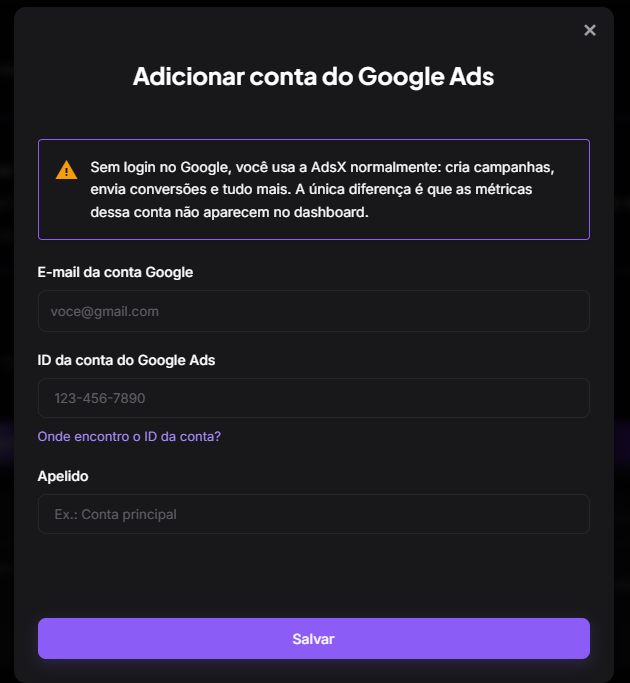
- Click Add account without Google Sign-in.
- Fill in Google account email, Google Ads account ID and Nickname — a name that helps you recognize the account, like "Main account".
- Click Save.
Done. The account shows up in the list with the Manual label, and you can already create campaigns and report conversions with it.
More than one account under the same email? On the account row, click Add account ID and enter the next ID.
Tips
- The ID has 10 digits. You can paste it with or without the dashes.
- Each ID can be registered under one account only.
- If signing in with Google starts working again and you want the dashboard, delete the account added without sign-in and connect the same account with Add account via Google Sign-in.
Updated on: 13/10/2026
Thank you!